How to Redact a PDF Properly (Without Leaking the Data)
Drawing a black box over text does not remove the text. The difference between redaction and the appearance of redaction — and a workflow to make sure you're doing the first one.
In this guide
- Key takeaways
- Why the black box fails
- What real redaction does
- A safe workflow, step by step
- Step 1: Work from a copy, never the original
- Step 2: Use a tool that truly removes content
- Step 3: Don't forget the parts that aren't on the page
- Step 4: Flatten the result
- Step 5: Try to break your own redaction
- The verification mindset
- A word on scale
- Frequently asked questions
There's a special kind of data breach that happens in slow motion: a document goes out with sensitive information "redacted," someone copies the black boxes, and the text underneath is right there. It has embarrassed law firms, government agencies, and Fortune 500 companies, and it keeps happening for one reason. Drawing a black rectangle over text does not remove the text. It draws a rectangle. The words are still in the file, patiently waiting for anyone who selects, copies, or runs a script.
If you send documents that contain anything you wouldn't want on the front page — personal data, financial figures, privileged legal content — this is the difference between redaction and the appearance of redaction, and how to make sure you're doing the first one.
Key takeaways
- A black box drawn over text is not redaction — the underlying text remains selectable and extractable.
- True redaction removes the content from the file, not just hides it visually, then flattens the result.
- Metadata, comments, layers, and attached files leak data even when the visible page looks clean.
- Always verify a redaction by trying to defeat it: select-all, copy, search, and check the file's structure before it leaves the building.
Why the black box fails
A PDF is not a picture of a page. It's a structured document: text objects, image objects, vector graphics, and annotations, all layered in a defined order. When you drag a filled black rectangle over a paragraph in a basic PDF viewer, you've added one more object — an opaque shape — on top of the text object. The text object is untouched. It's underneath, complete, and fully addressable.
So anyone can:
- Select the text through the box and copy it out.
- Run a text-extraction tool and get the "hidden" content in plain text.
- Delete the rectangle annotation and reveal everything.
- Open the file's internal structure and read the strings directly.
The visual is a lie the file doesn't tell the software. To your eyes the page looks safe. To a Ctrl+A it's an open book.
What real redaction does
Proper redaction is destructive by design. It doesn't cover the content — it deletes it from the document's structure and replaces it with a marking (usually a black bar) that has no data behind it. The correct tools do this in two stages: mark the regions to redact, then apply the redactions, which is the step that actually removes the underlying text and image data. Skipping the apply step is the most common mistake, because marking looks identical to applying on screen.
After removal, you flatten. Flattening collapses the layers so there's no annotation to peel back and no separate object to recover. The redacted regions become part of a single rendered layer with nothing beneath them.
A safe workflow, step by step
Step 1: Work from a copy, never the original
Redaction is destructive and irreversible when done right — which means a mistake is also irreversible. Keep the untouched original in a secure location and do all redaction on a duplicate. If you get a region wrong, you go back to the source, not to an undo history that may not exist after flattening.
Step 2: Use a tool that truly removes content
Use software with a genuine redaction feature — one that has a distinct "apply redactions" action that removes the underlying data. If your tool only lets you draw shapes or highlight, it cannot redact; it can only decorate. When in doubt, assume a "black highlight" is cosmetic.
Step 3: Don't forget the parts that aren't on the page
The visible text is only the obvious leak. A PDF carries a lot of content that never shows in the main view:
- Metadata — author, title, and custom fields can name the very person or matter you're trying to protect. This is the same metadata that reveals a document's real history, and it leaks both ways.
- Comments and annotations — sticky notes and markup can contain the sensitive discussion, not just the page.
- Layers and hidden objects — content on a hidden layer is still in the file.
- Embedded and attached files — a PDF can carry other files inside it, redacted from nothing.
- Bookmarks and form-field values — a field can hold data the page no longer shows.
A clean-looking page with dirty metadata is a leak. Strip all of it.
Step 4: Flatten the result
Once redactions are applied, flatten the document so there are no separable layers or annotations to reconstruct. The output should be a document where the black bars are baked into the rendered content, not sitting on top of it.
Step 5: Try to break your own redaction
This is the step that saves careers, and it takes two minutes. On the finished file:
- Select all, copy, and paste into a plain text editor. If any "redacted" words appear, you failed — start over.
- Search the document for a term you redacted. Zero hits is the only passing grade.
- Extract text with any tool you have. Read what comes out.
- Inspect the metadata and structure. Confirm the sensitive strings are gone from the file itself, not just the view.
If you have a forensic view of the file available, use it — the same analysis that catches a tampered document will happily show you exactly what text and metadata still live inside your "redacted" one. Treat that as your last gate before anything leaves.
The verification mindset
Here's the reframe that makes this stick: redaction isn't done when the page looks right. It's done when you've failed to extract the content you were hiding. The visual is the least trustworthy signal in the whole process, because the visual is exactly what a bad redaction gets right.
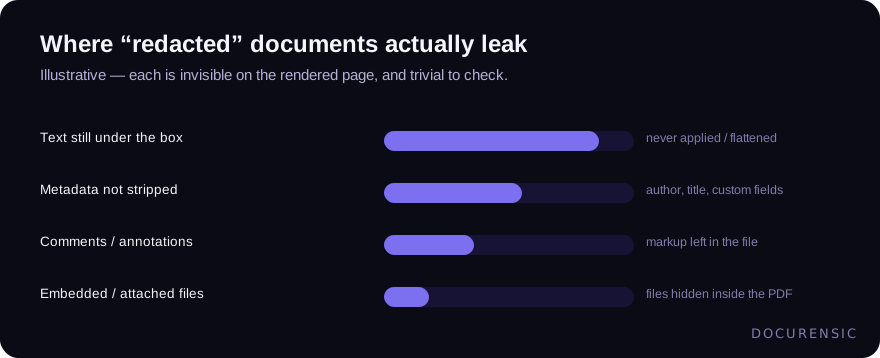
Every one of those is invisible on the rendered page. Every one of them is trivial to check. The gap between "looks redacted" and "is redacted" is entirely made of steps people skip because the screen already looked fine.
A word on scale
Redacting one document by hand is a discipline problem. Redacting thousands — in discovery, in records requests, in compliance workflows — is a process problem, and process problems are where the misses cluster, because one skipped "apply" in a batch is one breach. If you're operating at that scale, the verification step above should be automated: every outbound document machine-checked for residual text and metadata in the redacted zones before release. It's the same principle as any good document workflow — put the check inside the pipeline, not in someone's memory. For anything privileged or regulated, that automated last look is cheap insurance against a very expensive, very public mistake.
Frequently asked questions
Why can I still copy text from a redacted PDF?
Because the "redaction" was cosmetic — a black shape drawn over the text rather than a removal of it. The text object is still in the file, underneath the box, fully selectable. Real redaction deletes the underlying content and flattens the result so there's nothing left to copy.
Does flattening a PDF redact it?
No. Flattening collapses layers and annotations, which helps prevent someone from peeling back a black box, but if the underlying text was never removed, flattening a cosmetic box can still bake a recoverable image or leave extractable data depending on how it's done. Remove the content first (apply redactions), then flatten.
What sensitive data hides in a PDF besides the visible text?
Metadata (author, title, custom fields), comments and annotations, hidden layers, form-field values, bookmarks, and embedded or attached files. All of it can carry sensitive content that never appears on the rendered page, so redaction has to address the whole file, not just what you see.
How do I verify a redaction actually worked?
Try to defeat it. Select-all and copy into a text editor, search for terms you redacted, run a text-extraction tool, and inspect the file's metadata and structure. If none of the sensitive content comes back and it's gone from the file itself, the redaction held. If any of it surfaces, redo the whole document from the original.
Check the PDF you are holding
Run a free PDF X-Ray in your browser — it recovers text from the file’s earlier revisions, so you can see what a value was before it was changed. No account needed.
Keep reading
When Was This Really Made? A Field Guide to Document Time
Documents carry more clocks than people expect — and fraud usually breaks at least one. Where timestamps live, which ones lie easily, and how to read them together.
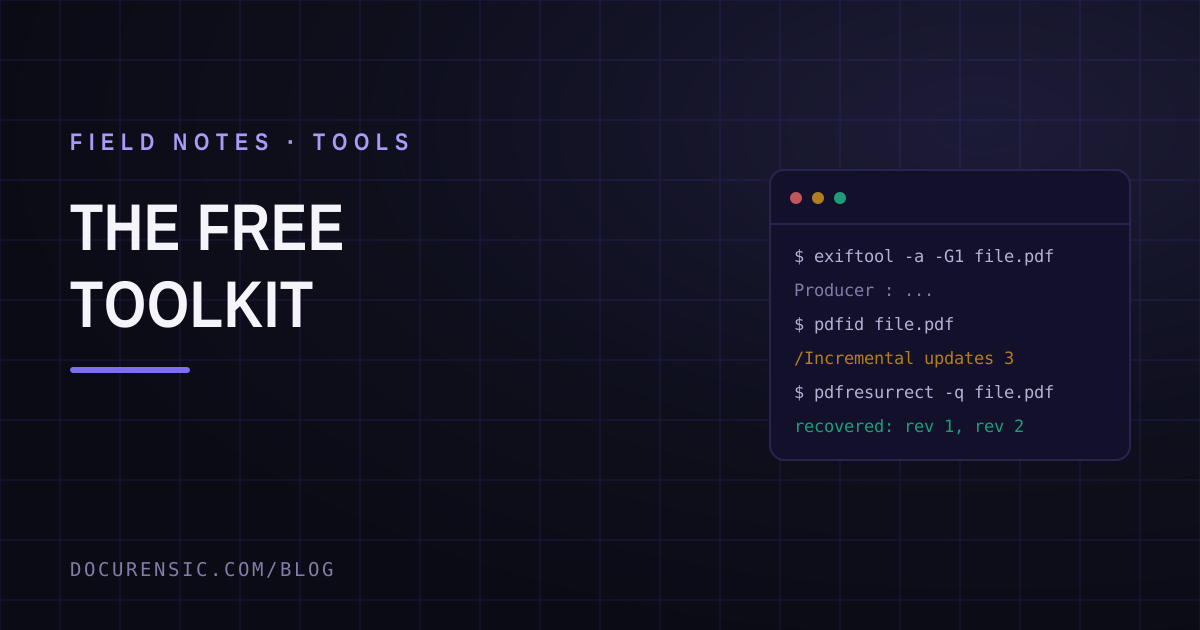
The Free Document Forensics Toolkit
ExifTool, pdfid, qpdf, mutool, FotoForensics and the rest — what you can genuinely establish about a suspicious document with software that costs nothing, in what order, and the four things free tooling cannot do.
How to Tell if a PDF Has Been Edited: 6 Checks That Actually Work
Six practical checks — from metadata dates to hidden revision history — that reveal whether a PDF was modified after it was created, and what each one can and can't prove.